Free beta · 0.1.0-beta.7 · Signed and notarized
 eaSplit
Put the right windows in the right places.
Choose the apps you want together, split them cleanly, and save the combination for next time.
- macOS 15+
- Apple silicon & Intel
- No account
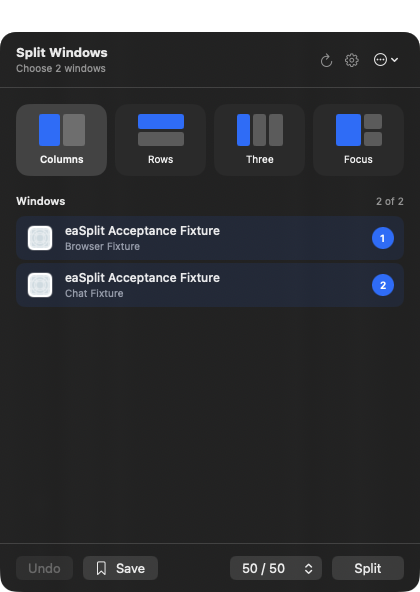
How it works
Three steps. Then one shortcut.
Open the disk image, drag eaSplit to Applications, and allow Accessibility so it can move and resize the windows you choose.
Choose
Pick the apps and windows you want together.
Arrange
Split them cleanly, or fill the screen with a single window.
Save
Save the combination for next time.
Reuse
Bring it back with your shortcut.
Arrange your windows. Clear everything else.
Splits get out of the way
The menu bar window closes itself after a successful split or Full Screen, so it never covers what you just arranged.
Every path, same behavior
The Split button, Full Screen, saved splits, and suggestions all close the menu the moment windows land.
Failures stay visible
An unsuccessful action keeps the menu open so the status message stays readable, matching the shortcut panel.
Full Screen for one window
Select a single window and the Split button becomes Full Screen, filling the screen with exactly that window.
Saved splits
Your layout, remembered.
Save the windows you keep putting together as a recipe, pick a layout once, and bring the whole arrangement back with one shortcut.
Browser + Teams
The call on one side, the page you are talking about on the other.
Notes + Mail
Write the reply while the thread stays in view.
Code + Docs
The editor and the reference, side by side.
- Columns
- Rows
- Three
- Focus